PDF Reader - PDF Converter
- 4.1
- Rating
- 10.00M
- Installs
- Free
- Price
 Analysis by App-foxy
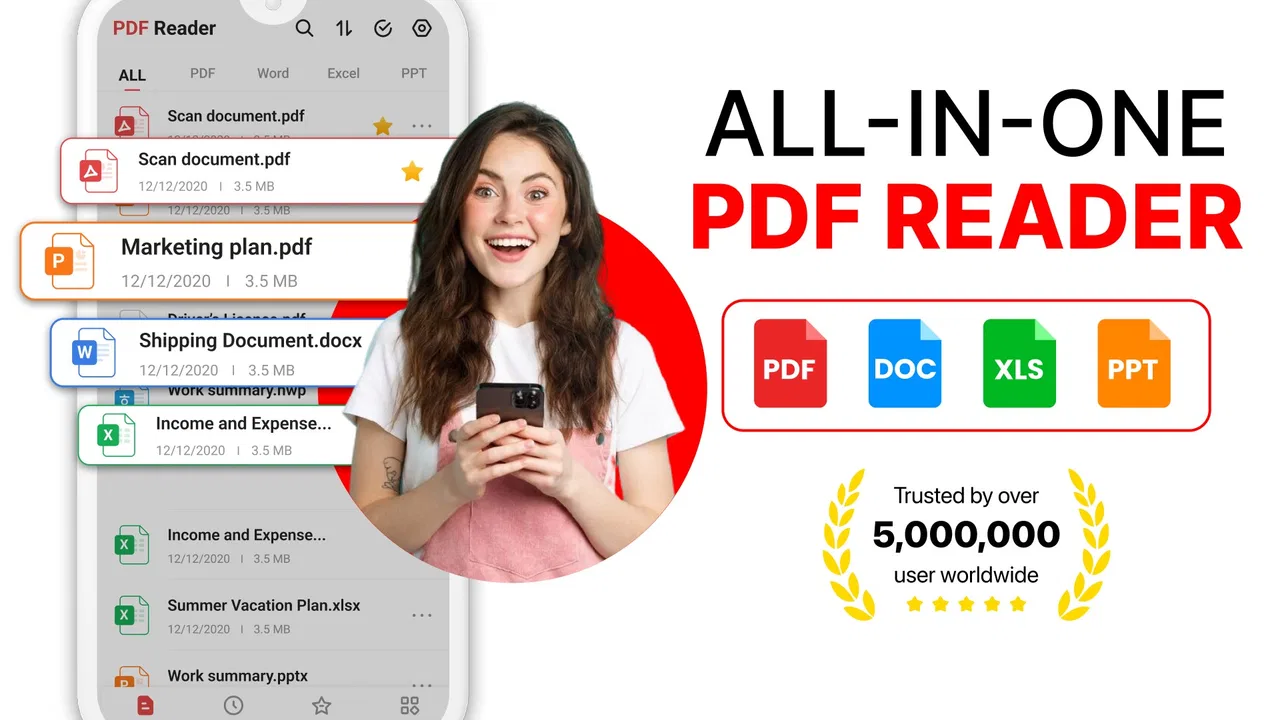
PDF files have a way of appearing at the worst possible moment: a form arrives in a chat, a document needs checking before a meeting, or an attachment opens badly when I am away from my computer. That recurring interruption is the real problem this app tries to solve. PDF Reader - PDF Converter brings reading, conversion, and editing into one productivity tool, so I can handle a document without immediately switching between several apps.
After using it, I see its main value less as a complete replacement for a desktop office suite and more as a practical emergency desk for a phone or tablet. It is useful when the task is focused: open a PDF, inspect its pages, make a modest change, or convert it into a more workable format. The experience is especially appealing for students, office workers, freelancers, and anyone who regularly receives documents while travelling.
The app is free to install and is suitable for Everyone. It is developed by iKame Applications - Begamob Global, and its broad adoption is reflected in more than ten million installs and an average rating of 4.1 from roughly forty-four thousand ratings. Those figures suggest that it has become a familiar choice for people who want a mobile PDF utility rather than a full computer-based workflow.
You May Also Like

 Blood Strike: 2.5 Anniversary
Blood Strike’s Loadouts Turn Every Drop Into a Tactical Gamble
A close look at Blood Strike’s custom loadouts: how fast access to signature weapons reshapes its battle royale rhythm, rewards preparation, and narrows the gap between fights.

 Pandora - Music & Podcasts
Pandora’s Music Is Easy to Start, but Harder to Recover
Pandora’s strength is its low-effort path from a seed to a station. Its weak spot is how much confidence it asks you to place in connection, setup, and quiet recovery.

 8 Ball Pool
 Is Built on Rivalries, Rematches, and Routine
A close look at the rivalries, rematches, shared routines, and unanswered safety questions that turn a quick pool match into a persistent mobile community.

 Samsung Music
’s Quiet Strength Is Playing What You Already Own
Its reach comes less from spectacle than from dependable access to a personal library. That simplicity is both the app’s strongest retention engine and its ceiling.

 AccuWeather: Weather Radar
AccuWeather Review: A Quick, Clear Forecast for Everyday Decisions
For everyday plans, the best forecast is the one you can understand quickly. AccuWeather makes rain timing, radar, and local conditions easy to act on, with a few trade-offs.

 Hill Climb Racing
Why Hill Climb Racing Still Turns Crashes Into One More Run
A tiny car, a bumpy hill and one more upgrade: Hill Climb Racing keeps resurfacing because its simple chaos makes every near-miss feel personal.
More From Our News Desk



Turning a phone into a practical PDF workstation
I treat the first setup as a chance to decide which documents I’m comfortable handling on a phone, rather than immediately importing everything I can find. That small boundary makes the app easier to use with confidence and helps keep everyday reading separate from files that belong in a more controlled work process. Next, I look at how the available choices shape the way I handle each document.
The first setup should be about finding documents quickly
My first recommendation is to treat the opening session as an organisation task, not just a test of whether a file loads. A PDF tool becomes frustrating when every document is buried in a downloads folder or mixed with images and messaging attachments. Before relying on it, I would open a few files from the places I normally use: recent downloads, email attachments, and files shared through messaging apps.
This simple check reveals whether the app fits my personal routine. A reader that works well for documents already stored on the device may still feel inconvenient if most of my PDFs arrive through another app. The useful question is not only “Can it open this file?” but also “Can I reach the file without repeating the same search every time?” That distinction saves more time than a long list of editing tools.
The current version is 4.9.1, and it supports devices running Android 7.0 or later. That makes it accessible on many older Android phones, although the smoothness of opening large or image-heavy documents will naturally depend on the device itself. I would keep some storage available before starting a conversion-heavy session, particularly when working with several copies of the same document.
Once a file is open, I prefer to read through it once before editing. That sounds obvious, but it prevents a common mobile mistake: changing a page or converting a document before noticing that the wrong attachment was selected. On a small screen, a quick visual check of the title, page count, and first page is worthwhile.
Reading is strongest when the task is focused
For ordinary reading, the app makes sense as a dedicated place for PDFs instead of relying on whichever viewer happens to be installed. I can use it for manuals, application forms, class notes, receipts, and work documents without opening a browser or a desktop program. The benefit is not dramatic in a single session, but it adds up when PDFs are part of my daily routine.
I found that the best reading workflow is to avoid treating every document as an editing project. If I only need to verify a date, check a paragraph, or review a few pages, opening the file directly and leaving it untouched keeps the process fast. Editing and conversion are there when needed, but they should not become extra steps for a simple reading job.
That is also where the app compares favourably with a basic file manager preview. A file manager may show a document, but it is not usually designed around repeated PDF work. On the other hand, a browser-based PDF service can be more convenient on a computer, especially when I already have the file open in a desktop workflow. On a phone, a dedicated app avoids the repeated upload-and-download cycle that web tools often create.
A realistic everyday scenario: the last-minute form
Imagine receiving a registration form while commuting. I need to read the instructions, check which pages matter, make a small adjustment if the document allows it, and send the result back before reaching the office. With a general file viewer, I may have to save the attachment, find a separate editor, then locate a converter if the recipient requests another format. This is exactly the kind of interruption where the app earns its place.
My practical approach would be to save the original first, open it for a quick review, and work on a separate copy. That habit matters because mobile editing can make it easy to lose track of which version is the untouched source. After the change or conversion, I would reopen the output and inspect the pages rather than assuming the process preserved everything perfectly.
This last check is especially important for forms, invoices, and documents with tables. A file can technically convert successfully while still needing a visual inspection for misplaced text, altered spacing, or a page that looks different from the source. The app reduces the number of tools involved, but it does not remove the need for sensible document handling.
Conversion is useful when compatibility is the real obstacle
The conversion function is most valuable when another person or service cannot work comfortably with the original PDF. For example, I may need to extract content into an editable document, prepare material for a different workflow, or make a file easier to handle on a device that does not display the source correctly.
There is an important trade-off here. Conversion is not the same as perfect reconstruction. Text-led documents generally have a better chance of remaining usable than scanned pages, complex layouts, forms, or files built from many images. I would therefore use the app to create a workable version, then compare key headings, numbers, and page breaks with the original.
A helpful habit is to convert only what I need. If a long document contains one relevant section, processing the entire file may create unnecessary duplicates and make the output folder harder to manage. Keeping the original beside a clearly named converted copy also makes it easier to return to the source when the layout matters.
Compared with a desktop converter, the mobile advantage is immediacy. I do not need to wait until I reach a computer. Compared with a simple reader, the advantage is flexibility. But desktop software remains the better choice for batch processing, precise layout work, or documents that need repeated revisions.
Editing on a small screen requires a different mindset
I would describe the editing side as a convenience layer rather than a replacement for professional document production. On a phone, small changes can be worthwhile: correcting a minor detail, preparing a document for sharing, or making a file more usable before a deadline. The screen size, however, makes precision more tiring than it is with a mouse and a full keyboard.
For that reason, I would not choose this app as my main tool for building a lengthy report from scratch. If the document needs careful typography, extensive rearrangement, or repeated review by several people, a desktop editor is more comfortable and easier to control. The mobile app is better when the document already exists and the required intervention is limited.
One non-obvious advantage of keeping reading, editing, and conversion together is that I can make a decision in context. I can inspect a page before deciding whether it needs editing, then convert it only if the next person needs a different format. With separate utilities, I am more likely to move files around prematurely and create several confusing versions.
Small workflow choices remove more friction than expected
The biggest time saving comes from reducing handoffs. Every time I export a file to another app, rename it, download it again, and search for the result, there is a chance of selecting the wrong copy. A combined PDF utility shortens that chain. It does not make every task instant, but it removes several small interruptions that are surprisingly costly during a busy day.
I also recommend using a naming pattern for outputs, such as adding “edited” or “converted” to the original filename. This is not a special feature; it is a simple workflow decision that makes the app more dependable. When a document has been through more than one conversion, names are more useful than relying on memory or file thumbnails.
Another practical tip is to check the output immediately after a conversion, while the original is still easy to find. If a page looks wrong, I can repeat the operation with a different source or choose another approach before sending the document. Waiting until later turns a small correction into a new search task.
Where the free model fits—and where it may not
The app is free, which makes it easy to try for occasional PDF needs. It also includes in-app purchases ranging from $3.99 to $29.99 per item. I would pay attention to the point at which the app asks for an upgrade and decide based on frequency rather than on the presence of extra options alone.
For someone who opens a PDF once a month, a free tool or the built-in viewer may be enough. For someone who repeatedly converts or edits documents on a mobile device, paying may be reasonable if the workflow becomes noticeably faster. The important question is whether the paid path removes a real obstacle in my routine, not whether having more functions feels automatically better.
This pricing structure also means I would not recommend installing it solely for one very occasional task without first considering simpler alternatives. A browser service may be adequate for a single non-sensitive document, while a computer program may offer better control for a large project. The app’s strongest case is repeated, on-device convenience.
Privacy and document sensitivity deserve deliberate choices
PDFs often contain personal, financial, academic, or workplace information. Before using any conversion workflow, I would consider whether the document is appropriate for a mobile utility and avoid casually processing highly sensitive material simply because the app is convenient. I would also keep the original file until I have confirmed that the result is correct and no longer needs revision.
This is one area where the usual alternatives can be preferable. An organisation with strict document rules may require an approved desktop application or managed work environment. A person handling confidential contracts may also prefer a tool already covered by their company’s procedures. The app can be useful without being the right answer for every document.
Who should use it, and who should skip it?
I would recommend PDF Reader - PDF Converter to people who regularly receive PDFs on Android and want one place to read, convert, and make practical changes. Students checking course material, freelancers sending revised documents, and travellers dealing with forms are likely to appreciate its compact workflow.
It is also a sensible option for anyone whose main frustration is not advanced design but interruption. If I keep thinking, “I will deal with this file when I get to my computer,” the app can turn that delay into a short mobile task. Its value is highest when speed and availability matter more than perfect desktop-level control.
I would skip it if my work involves heavy batch conversion, elaborate page design, detailed collaborative editing, or strict organisational document policies. In those situations, a dedicated desktop PDF editor, an office suite, or an approved workplace system is likely to be more comfortable and predictable.
My verdict after weighing convenience against control
PDF Reader - PDF Converter succeeds at the everyday problem it targets: getting a PDF from “I need to deal with this later” to “I have checked or prepared it now.” Bringing the core tasks together removes file transfers and makes a phone more useful when a computer is not nearby. That is a meaningful benefit, even though it is built from fairly ordinary actions.
I like it most as a practical companion rather than an all-purpose office replacement. The reading experience suits quick checks, conversion helps when compatibility gets in the way, and editing is useful for limited interventions. The trade-off is that mobile work remains less comfortable for precision tasks, and every converted document still deserves a visual check.
With more than ten million installs, an average score of 4.1, and a free starting point, it is an easy app to test against my own PDF routine. I would install it when I want fewer handoffs and a reliable way to handle documents away from a desk, while keeping a fuller desktop option available for demanding work. My recommendation is simple: choose it for fast, focused PDF tasks on Android, not for replacing a complete professional document studio.
FAQs for PDF Reader - PDF Converter
01How do I convert a document to PDF using PDF Reader - PDF Converter?
To convert a document to PDF, open the app and select the 'Convert' option. Choose the file format you wish to convert from, such as Word or Excel. Upload the file, then tap 'Convert'. The app processes the file and saves it as a PDF, which you can then view or share directly.
02Is PDF Reader - PDF Converter free to use?
PDF Reader - PDF Converter offers a free version with basic features, such as viewing and converting a limited number of documents per month. For unrestricted access and additional features like advanced editing tools, users can opt for a subscription plan, which provides unlimited conversions and premium support.
03What file formats are supported for conversion in PDF Reader - PDF Converter?
The app supports a wide range of file formats for conversion to PDF, including Word (.doc, .docx), Excel (.xls, .xlsx), PowerPoint (.ppt, .pptx), and image files (.jpg, .png). This versatility ensures that users can easily convert various document types into PDFs for easier sharing and viewing.
04Can I edit PDFs using PDF Reader - PDF Converter?
Yes, PDF Reader - PDF Converter includes basic editing features that allow you to annotate, highlight, and add text to your PDFs. For more advanced editing options, such as merging PDFs or adding digital signatures, users may need to upgrade to the premium version of the app.
05Is my data secure when using PDF Reader - PDF Converter?
The app prioritizes user privacy and data security by implementing encryption protocols during file processing. However, it is always advisable to check the app's privacy policy for details on data handling practices. Users should ensure they download the app from official app stores to avoid security risks.
Pros
- Fast and efficient PDF conversion.
- User-friendly interface for easy navigation.
- Supports multiple file formats for conversion.
- Includes annotation and editing tools.
- Secure with password protection options.
Cons
- Limited free version features.
- Occasional ads can be intrusive.
- Requires internet for some features.
- May slow down with large files.
- No cloud storage integration.

PDF Reader - PDF Converter
Gallery